
Have you ever woken up with your cell phone dead in the middle of the day, even though you charged it the night before? The reality is that many battery-saving apps promise miracles, but few deliver real results. In this article, we'll uncover the myths and truths about these solutions, showing exactly how they work and which ones really make a difference in your device's battery life.

AccuBattery - Bateria
Digibites
The battery-saving app industry has grown exponentially in recent years, fueled by desperate users searching for quick solutions. However, not everything that glitters is gold, and many of these apps bring more problems than real benefits. Let's explore this area in depth, separating facts from fiction and helping you make more conscious decisions about how to manage your phone's energy.
Myth 1: Cleaning apps significantly save battery
One of the biggest myths in the mobile universe is that cache cleaners and temporary file apps dramatically extend battery life. Many people install these apps expecting to see a difference of hours, but reality is far more modest. Files in cache do take up storage space, that's true, but their impact on battery is practically nil, since locally stored data consumes far less energy than downloading data again from the internet.
What really happens is that you might gain a few minutes of battery life by cleaning files, but this occurs mainly because your phone becomes faster and more responsive after cleanup. A faster device executes tasks more efficiently, consuming less energy during the process. However, installing an extra app just to do this cleanup can be counterproductive, since the app itself consumes energy while running.
Truth: The processor and screen are the biggest battery drains
If you really want to save battery, you need to focus on elements that actually consume energy: the processor and, especially, the screen. Your phone's screen is responsible for somewhere between 30% to 40% of total battery consumption during active use, depending on the display type and brightness settings. A processor working at maximum power also consumes a considerable amount of energy, especially when executing multiple tasks or running heavy games.
Reducing screen brightness to a comfortable level, enabling dark mode in apps that support OLED, and managing apps running in the background are truly effective strategies. You can easily gain 2 to 3 hours of battery life just by adjusting these settings without needing to install any additional apps. These changes are simple, free, and they actually work.
Myth 2: Closing background apps saves a lot of battery
You've probably seen YouTube videos showing people closing dozens of open tabs, with promises of gaining hours of battery. This practice has become common sense, but it's not as effective as it seems. Apps suspended in the background are actually suspended, meaning they consume minimal resources when you're not interacting with them.
Your phone's operating system, whether iOS or Android, is smart enough to manage this memory automatically. When RAM memory is full, the system intelligently terminates background apps. Constantly manually closing all apps can actually hurt performance, since the system needs to reload them from scratch when you use them again, consuming more energy in this reloading process.
Truth: Disabling unnecessary connectivity makes a real difference
Bluetooth, GPS, and Wi-Fi always connected consume considerable energy, especially GPS, which keeps the receiver active constantly searching for satellite signals. If you're not using navigation, there's no reason to leave GPS on all the time. Many apps request location permission even when they don't need it, and this silently drains battery.
Disabling Bluetooth when you're not using wireless headphones, turning off Wi-Fi if you rely more on mobile data, and managing location permissions for each app can add significant hours to your phone's battery life. You can create different profiles for these settings: one for home, another for work, and another for travel, activating only the connectivity you need in each situation.
Myth 3: All battery-saving apps work the same way
There are hundreds of different apps on the market promising to save battery, and they use very different approaches. Some simply provide shortcuts to disable system features you can already disable in normal settings. Others promise "smart" optimizations that actually end up disabling things you might need.
The biggest difference between these apps lies in how they implement their strategies and how much overhead they add to the system. An app that uses a lot of RAM and CPU to save you a few minutes of battery is a bad deal. You're trading immediate autonomy for uncertain future savings, and often the app itself consumes more than it saves, resulting in net energy loss.
Truth: Managing background apps is crucial
While manually closing apps doesn't work well, managing which apps have permission to run in the background is absolutely essential. Some apps are constantly syncing data, checking notifications, and updating information even when you're not using them. Social networks, email apps, and messengers are notorious for this behavior.
You can restrict these activities in Android settings by going to Settings > Apps > Permissions > Location and disabling background access for apps that don't really need it. On iOS, go to Settings > General > Background App Refresh and disable this feature for specific apps. This surgical approach saves battery without leaving you disconnected from apps that really matter.
Myth 4: Disabling animations significantly saves battery
Many battery-saving guides recommend disabling all system animations and visual transitions. While this practice had real results on older devices with slow processors, on modern phones the impact is minimal. Current processors are optimized to handle animations smoothly, especially on displays with high refresh rates.
Disabling animations might gain you a few minutes of battery life, but the savings are disproportionate to the inconvenience of using a phone without smooth animations. It's a trade-off that few users actually think is worth it. If you're desperate for battery, this would be one of the last options to consider, not one of the first.
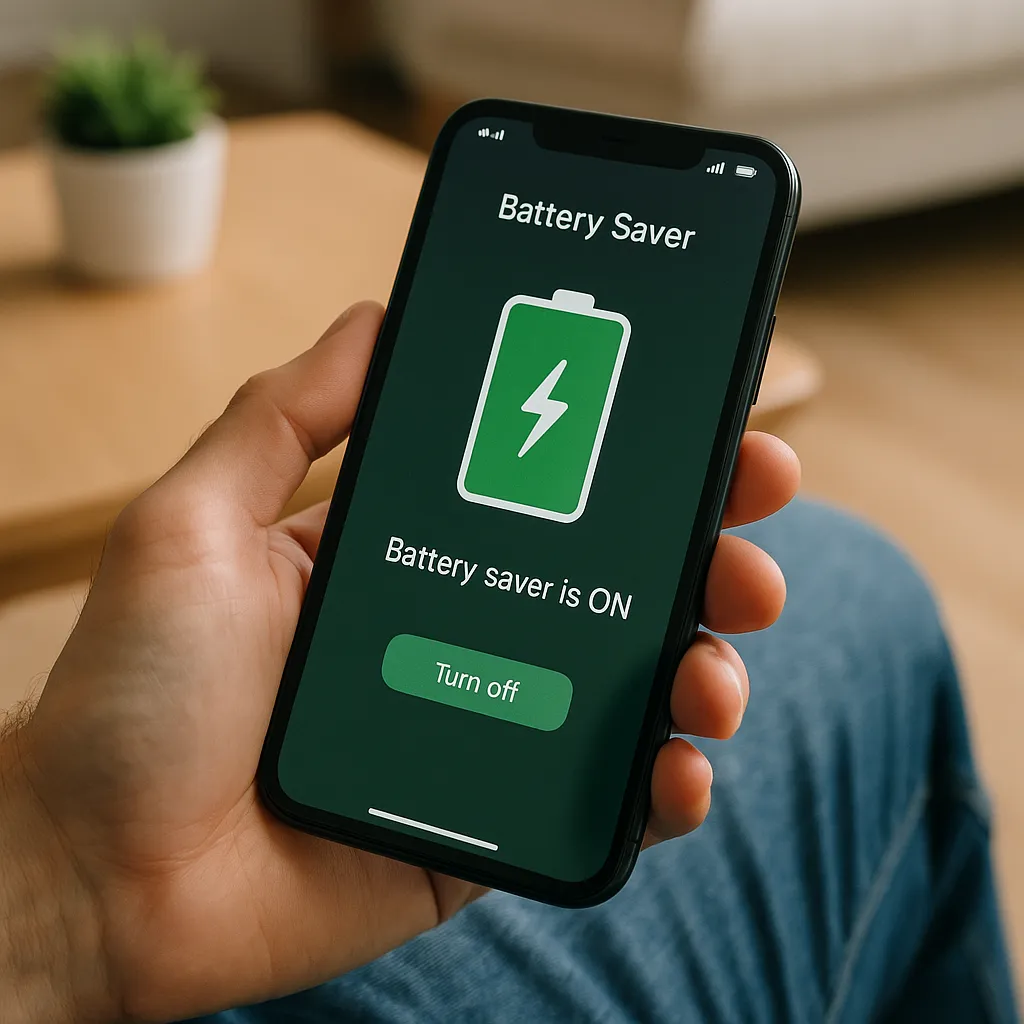
Truth: Battery saver mode really works when activated correctly
Both Android and iOS come with built-in battery saver modes, and when used correctly, they really work. Android offers "Adaptive Battery" or "Extreme Battery Saver Mode," while iOS has "Low Power Mode." These modes reduce processor performance, limit background activities, and reduce automatic syncing.
The key is understanding what each mode does and activating the one that best fits your situation. If you're leaving home for an entire day without being able to charge, enabling extreme battery saver mode can easily add 8 to 10 extra hours of battery life. Most users don't notice the performance reduction in normal tasks like browsing, social media, and messaging, making this an extremely practical adjustment.
Myth 5: Charging your phone overnight damages the battery
A classic myth that still persists is that leaving your phone charging overnight damages the battery. This myth might have had some validity with very old battery technologies, but on modern devices it's completely unfounded. Lithium-ion batteries used in current phones have sophisticated protection circuits that prevent overcharging.
When your battery reaches 100%, the charger stops supplying continuous current and only maintains the necessary charge, just like a voltage stabilization system. The real enemy of battery health is keeping it constantly at high temperatures or in extreme discharge cycles. Leaving your phone charging overnight at room temperature is one of the safest practices you can do.
Truth: Knowing which apps consume the most battery is fundamental
Your operating system provides detailed statistics on which app consumes the most battery. On Android, go to Settings > Battery > Battery usage, and you'll see a graph showing which apps are draining the most energy. On iOS, go to Settings > Battery > Battery Health and Charging > App Activity.
This information is gold for optimizing your phone. If you notice an app is consuming an abnormally high amount of battery, you can uninstall it, disable its background permissions, or look for alternatives. Sometimes an outdated app or one with bugs is consuming resources unnecessarily, and a simple update or reinstall completely solves the problem.
Myth 6: All free battery-saving apps are always safe
Many free battery-saving apps finance their existence through intrusive advertising or data collection. Some of the worst even include malware or spyware discreetly packaged with their features. An app that saves you 10% battery but collects all your browsing data is not a good deal.
If you really want to install a battery management app, choose options from trusted developers with good ratings, read the permissions the app asks for, and be suspicious of any app that wants access to contacts, messages, or browsing history. The ideal is to simply use the managers built into your operating system, which don't have any of these security issues.
Truth: Battery calibration can improve percentage reading
If your phone is showing erratic battery percentages or shutting down suddenly at 20%, it could be a calibration problem. This doesn't mean your battery is actually draining faster, but rather that the operating system is reading the remaining charge incorrectly. Calibrating the battery is a simple process that can restore reading accuracy.
To calibrate on Android, let your phone fully discharge until it shuts down on its own, then charge without interruption until 100% with the device off or not in use during charging. On iOS, the process is similar: let it fully discharge, then charge without using until it reaches 100%. Repeating this process once a month helps maintain accurate calibration and improves your overall battery experience.
Myth 7: Airplane mode saves battery even with connectivity active
A confusing myth that circulates is that you can gain battery savings by enabling airplane mode but keeping Wi-Fi on. The truth is that airplane mode disables all connectivity, including Wi-Fi, Bluetooth, and mobile data simultaneously. Enabling Wi-Fi after enabling airplane mode disables some benefits, since all you're doing is disabling mobile data and Bluetooth.
If you want to focus only on saving mobile data, just disable your carrier data in settings. If you want to disable cell signal but keep Wi-Fi and Bluetooth, you need to configure these options individually. Airplane mode is a useful tool when you really don't want any connectivity, such as during flights, but it's not the most granular solution for saving battery in normal scenarios.
Truth: Reducing screen refresh rate saves battery on high-refresh displays
Displays with 120Hz or 144Hz refresh rates offer a smoother visual experience, but consume more battery than 60Hz displays. If your phone has a high refresh rate display, you can reduce that rate in display settings to save significant energy. Most normal activities work perfectly at 60Hz, and you only really appreciate the difference in games or during fast scrolling.
Some phones offer automatic switching between 60Hz and 120Hz based on what you're doing. Enable this option if available, as it allows you to enjoy smoothness when it really matters while saving battery during normal tasks. The battery life gain can be between 15% to 25%, making this one of the most impactful optimizations you can make.
Myth 8: Charging to 100% every day quickly destroys the battery
While it's true that extreme discharge cycles (0% to 100%) are slightly more stressful on the battery than partial cycles, charging to 100% daily won't quickly destroy your battery. Modern batteries are designed to handle thousands of these cycles, typically lasting between 3 to 5 years with normal use.
If you really want to maximize battery longevity, keeping it between 20% and 80% is the theoretical ideal, but in practice, charging to 100% when needed is perfectly acceptable. iOS even offers an "Optimized Charging" option that learns your charging patterns and avoids keeping the battery at 100% when you're not using the phone, offering a good balance between convenience and longevity.
Truth: Poorly maintained apps drain battery quickly
Some apps that haven't received updates for months or years may develop memory leaks or bugs that cause excessive battery consumption. A well-maintained app receives security fixes, performance optimizations, and energy efficiency improvements regularly. If you notice an app is consuming a lot of battery, the first thing to do is check if an update is available.
If the app is updated but continues consuming a lot of energy, and you really need it, consider looking for lighter alternatives. Sometimes there are "lite" versions of popular apps that offer essential features with much lower resource consumption. For messaging, for example, using the browser to access the web version may consume less battery than the desktop app.
Myth 9: Restarting your phone frequently improves performance and saves battery
There's a myth that restarting your phone every day improves performance and saves battery. While an occasional restart can help clear RAM memory and stuck processes, restarting frequently doesn't offer significant continuous benefit on modern phones. You'll just be wasting energy on the restart process every day.
Restart your phone only when necessary, such as when it's freezing, or once every one or two months as preventive maintenance. Constantly running a phone without restarting doesn't cause problems in modern operating systems, which manage memory and processes continuously without needing frequent restarts to function well.
Truth: Disabling automatic sync on specific apps saves battery
Apps like email, OneDrive, Google Photos, and social networks are constantly syncing data in the background. You can reduce this syncing in each app's settings, specifying sync frequency or disabling it completely when you're not using Wi-Fi. This is particularly important for email and cloud storage apps, which can sync large amounts of data.
An efficient strategy is to keep automatic sync enabled only when connected to Wi-Fi, and do manual syncing on mobile data connections. This saves considerable battery during the day, especially if you're away from an outlet and need to make every milliwatt count. Configure this for all apps that have sync options in their individual settings.
Practical facts about real battery savings
After uncovering myths and truths, it's important to understand that real battery savings come from behavioral changes and simple adjustments, not magical apps. Reducing screen brightness, disabling unnecessary connectivity, managing background apps, and using battery saver mode when needed are the most effective strategies. You can easily gain 20% to 40% of battery life by applying these techniques without installing anything.
If you gain battery by installing an app, it's only because that app is helping you do what you could already do in your system settings. In that case, why install an extra app that consumes its own resources? The answer is you shouldn't, unless the app offers something that native settings don't, which is rare for basic battery-saving features.
FAQ about battery-saving apps
What's the best app to save cell phone battery? The best "app" is actually not installing any. Your phone's native settings already offer everything you need. If you want a monitoring tool, apps like AccuBattery provide useful analytics without draining significant energy, but even these aren't strictly necessary.
Do battery-saving apps affect phone performance? Yes, they often do. Any extra app consumes RAM memory, CPU cycles, and energy while running. Many battery-saving apps reduce your device's performance by disabling background processing, sync activities, and app updates, which can leave you disconnected.
Is it worth installing a battery-saving app? In most cases, no. Your operating system's built-in features are sufficient to optimize battery consumption. If you want to monitor consumption, there are free options that provide statistics without significantly affecting performance, but they aren't strictly necessary for good battery life.
How do I know if my phone is experiencing abnormal battery drain? Compare the battery usage of each app with others or with historical data from your own device. Access your phone's battery settings and check the usage graph. If an app is consuming 30% of your battery while you barely use it, something's wrong. Try uninstalling, updating, or checking the background permissions of that app.
Does disabling Wi-Fi really save more battery than mobile data? It depends. Generally, Wi-Fi is more energy-efficient than 4G/5G data, so keeping Wi-Fi on while at home saves battery. However, constantly searching for Wi-Fi networks with Wi-Fi on but disconnected consumes more energy than leaving it off. Keep Wi-Fi on when near known networks, and turn it off when you know Wi-Fi won't be available.
Which app consumes the most battery on Android? Usually social networks, browsers, and streaming apps consume a lot of battery. Facebook, Instagram, YouTube, and Chrome are frequently at the top of the list on many phones. If you want to save battery, consider using web versions of these services instead of apps, or limit the time you spend on them.
Conclusion: Take control of your phone's battery
The truth about battery-saving apps is simple: most aren't worth it, and the best energy-saving strategies don't involve installing anything. You have complete control over your phone's battery through native settings that are accessible in seconds. Reducing brightness, disabling unnecessary connectivity, managing background apps, and using battery saver mode when needed are proven strategies that work.
Don't fall into the trap of installing dozens of "optimizer" apps hoping for miracles. Every extra app you install consumes valuable resources that could be saving battery instead. Spend a few minutes understanding how your operating system manages energy, configure it correctly once, and you'll have much better battery life without relying on third parties or security risks. Your phone can last much longer on the charge it has, and you don't need any magic tools to achieve this.